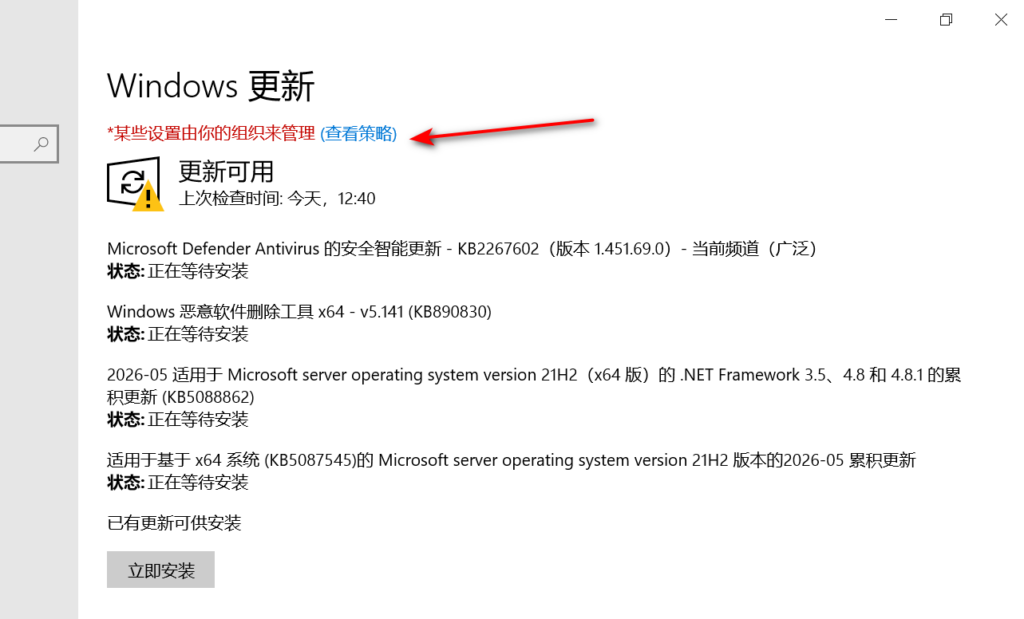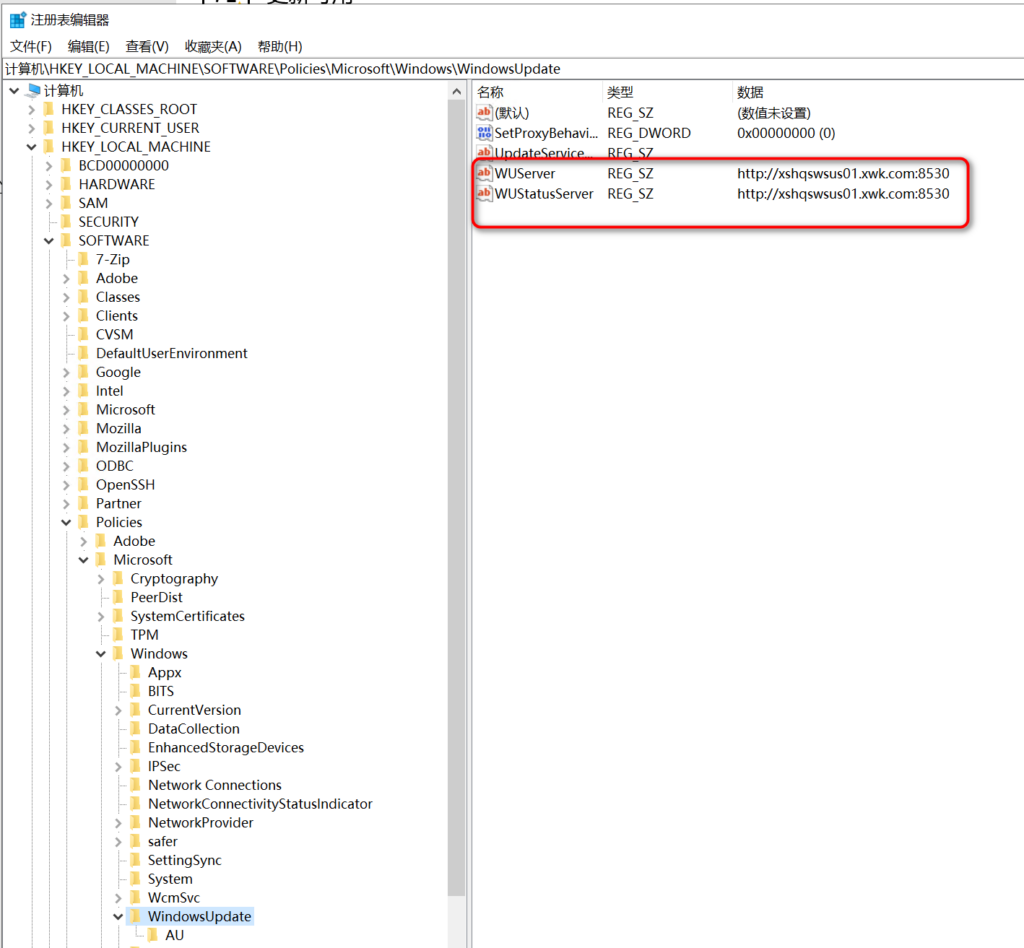
As for businiess needs, we got hundreds and thousands computer in the company, But we don’t want to updated the Windows patch from the internet for every sigal computer.So we need to have a Windows Server Update Services, this is more efficent, and not to abuse the company bandwith in business hours.
Following is the step by step workflow to deploy a WSUS server, I deploy it on Windows server 2025, and have joined the domain.
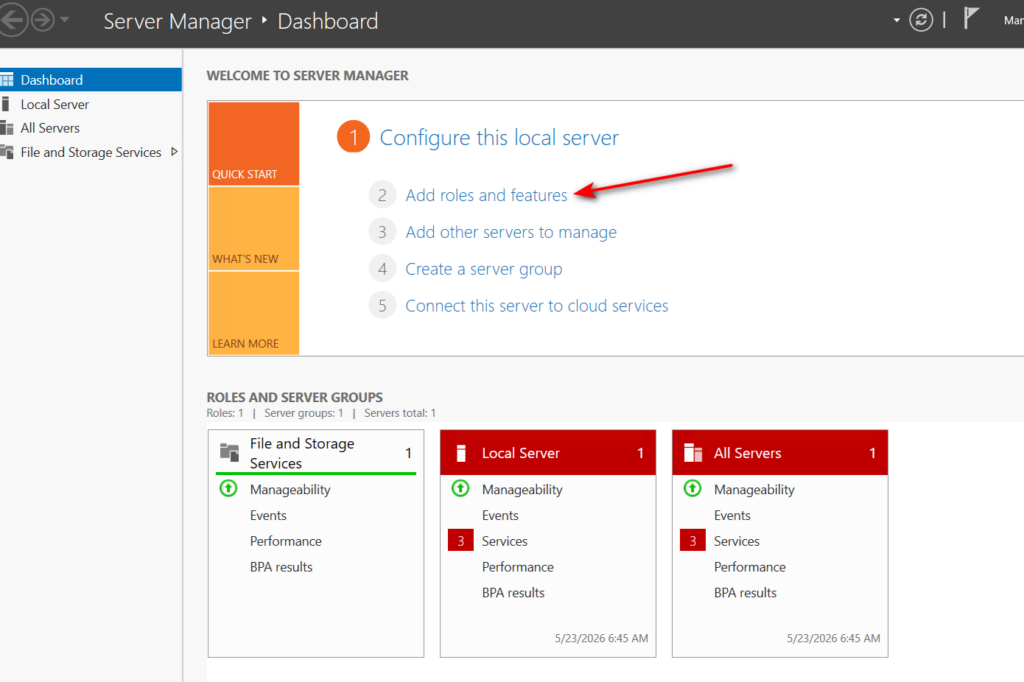
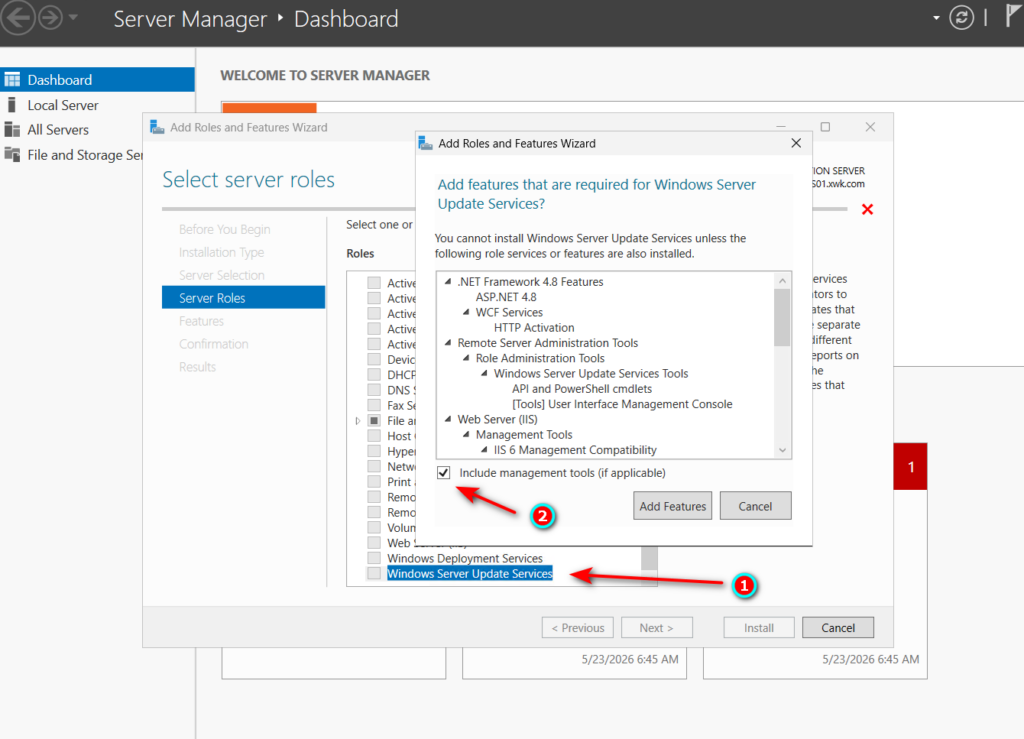
- Open Server Manger, click “Add roles and feathres”.
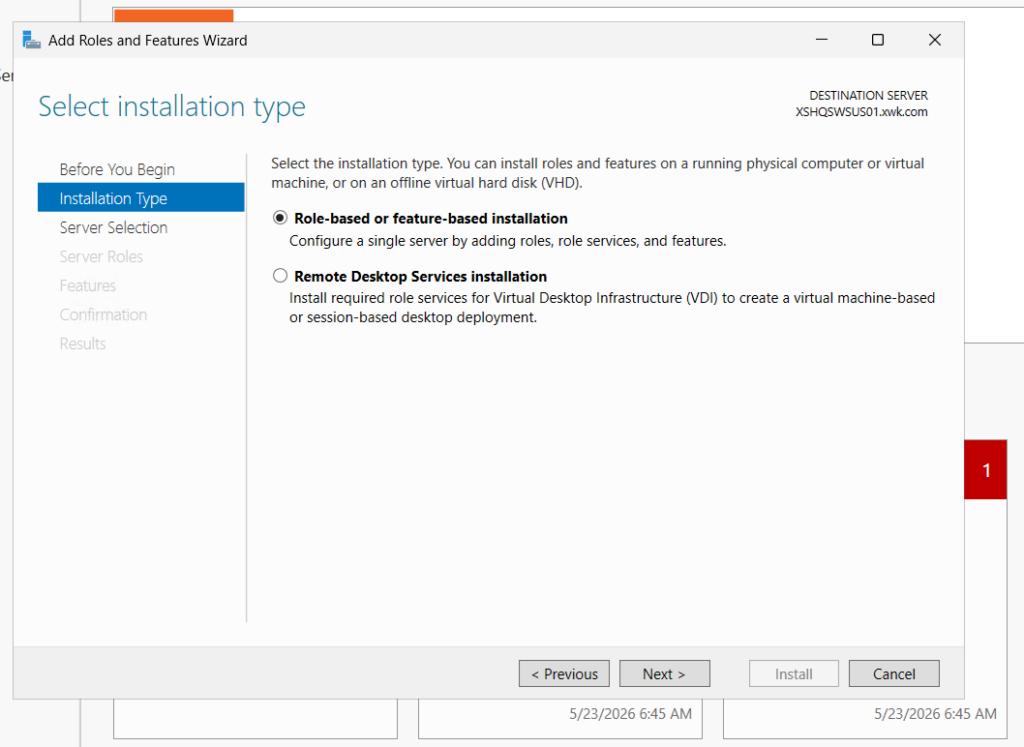
- Choose “Windows Server Update Service” and “Include management tools(if possibe)”
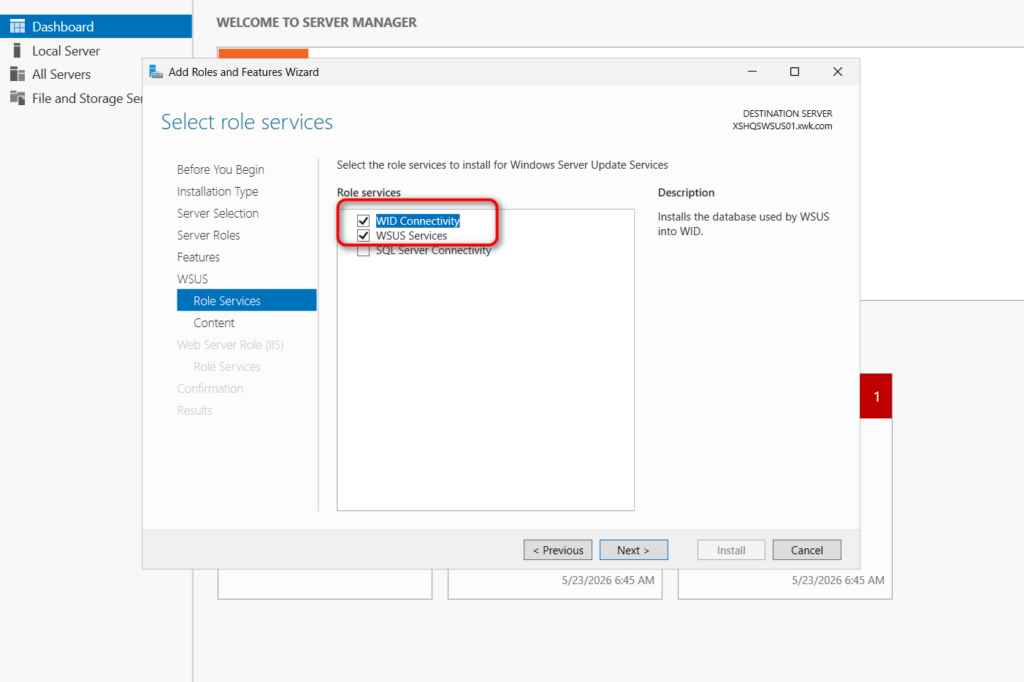
- Keep “WID connectivity” choosed.
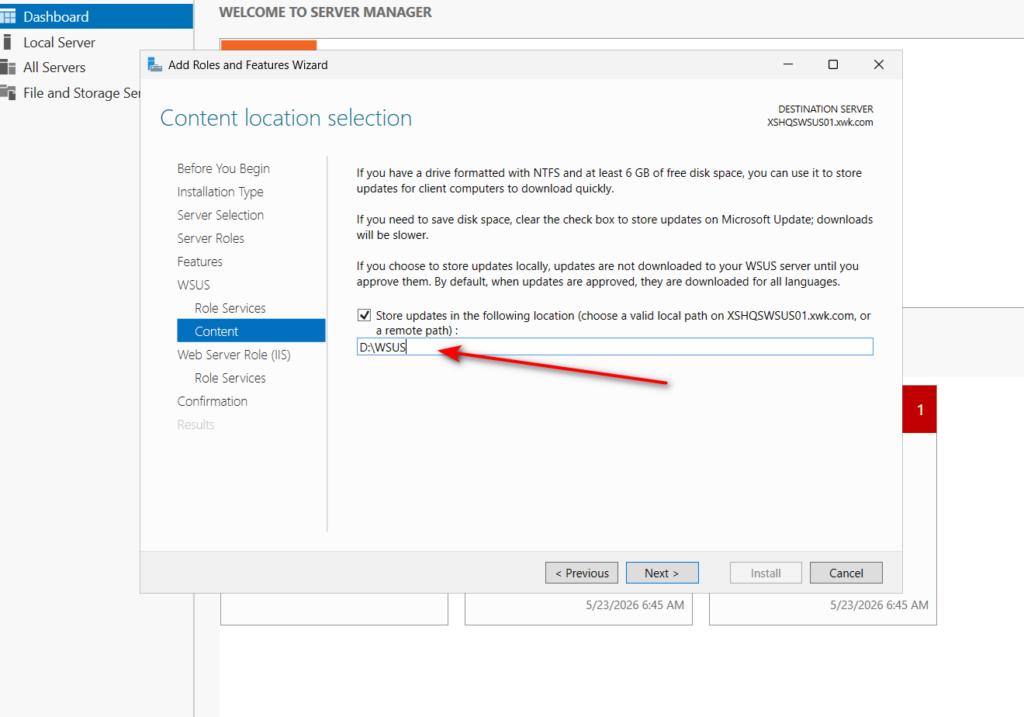
- Input a location path to store the download windows update patches.The space depends how many kinds of Windows product you have,for my cirucstands, I only got Windows server and Win11. So 500 GB is enough for me.
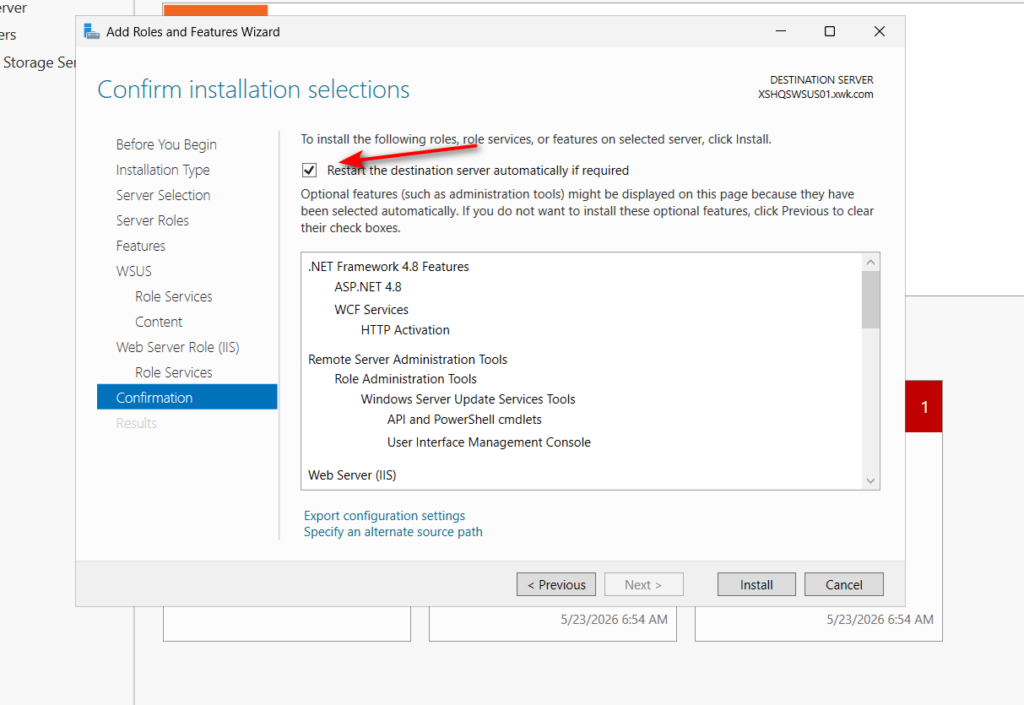
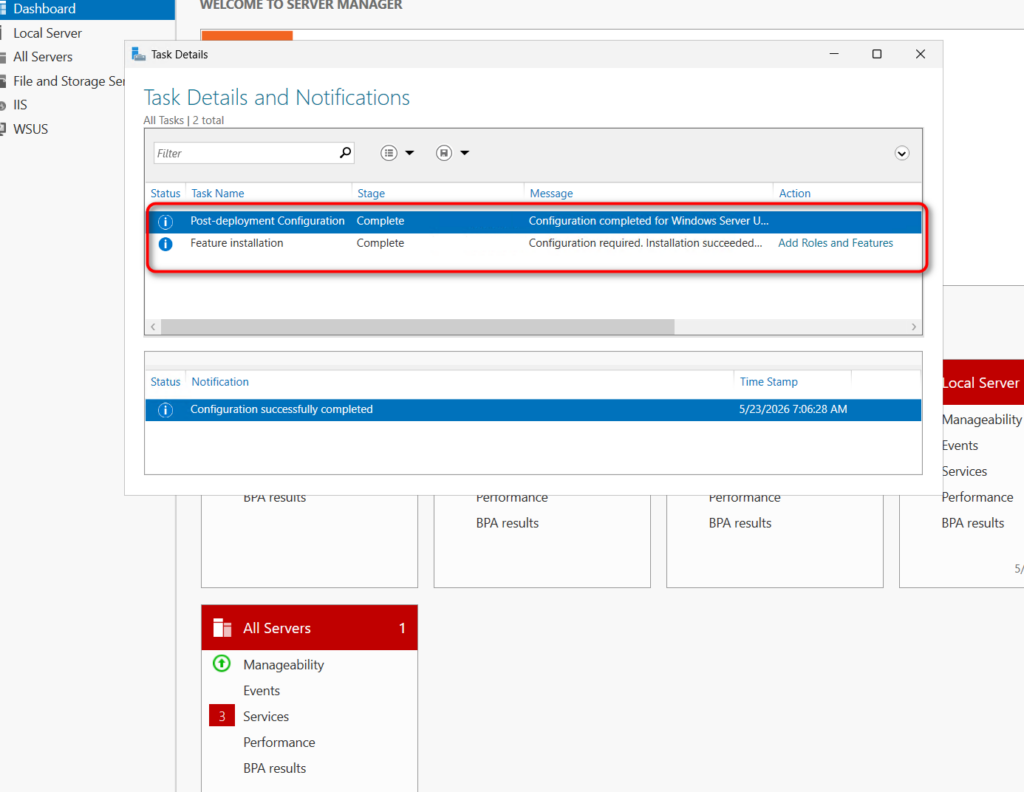
- Installed complated, post-deployment configuration in progress.
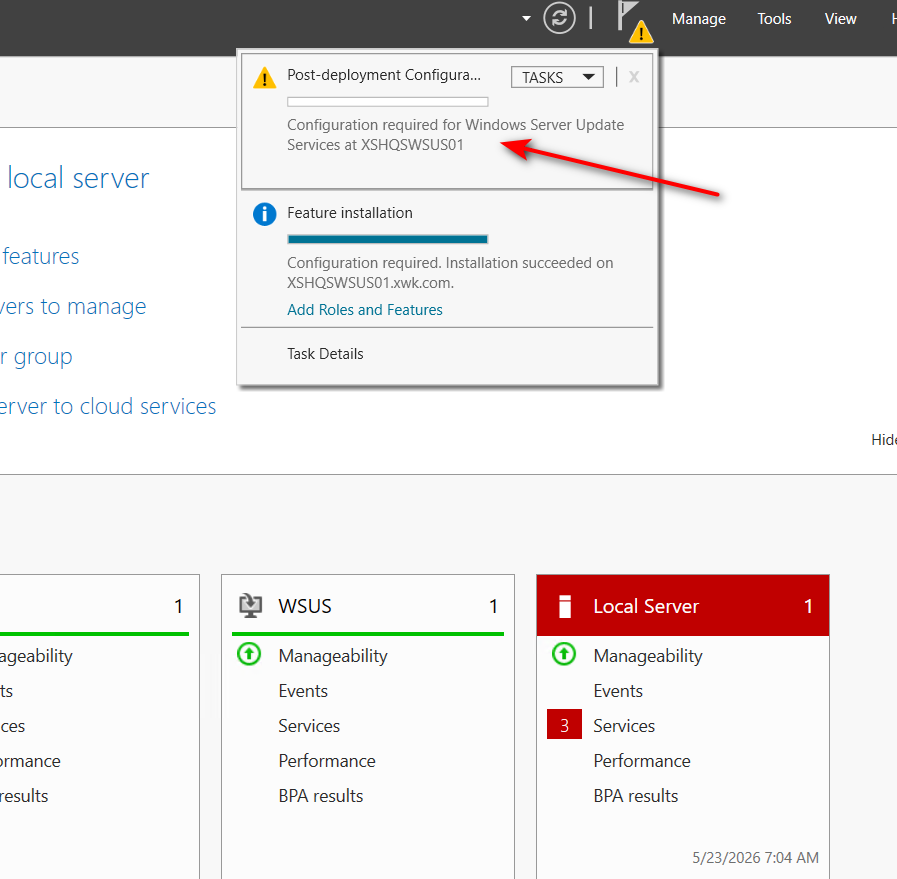
- We can config the WSUS after post-deployment configuration completed.
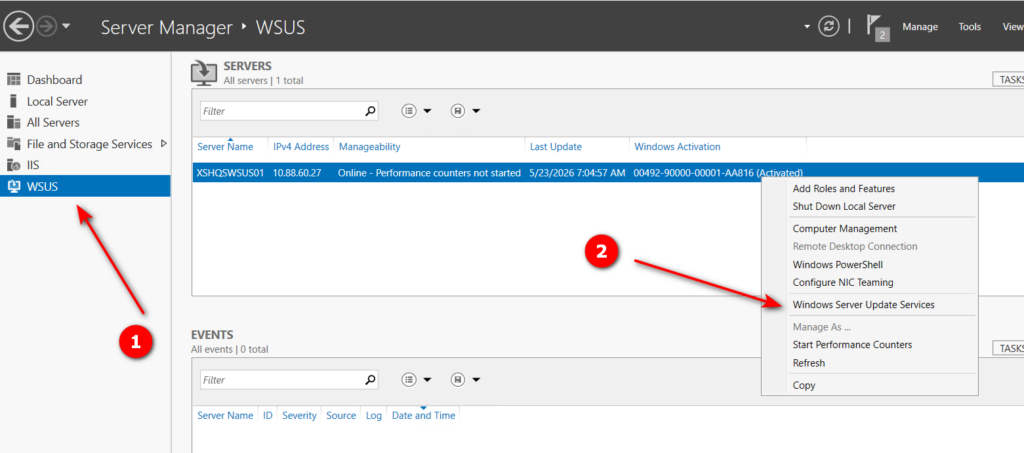
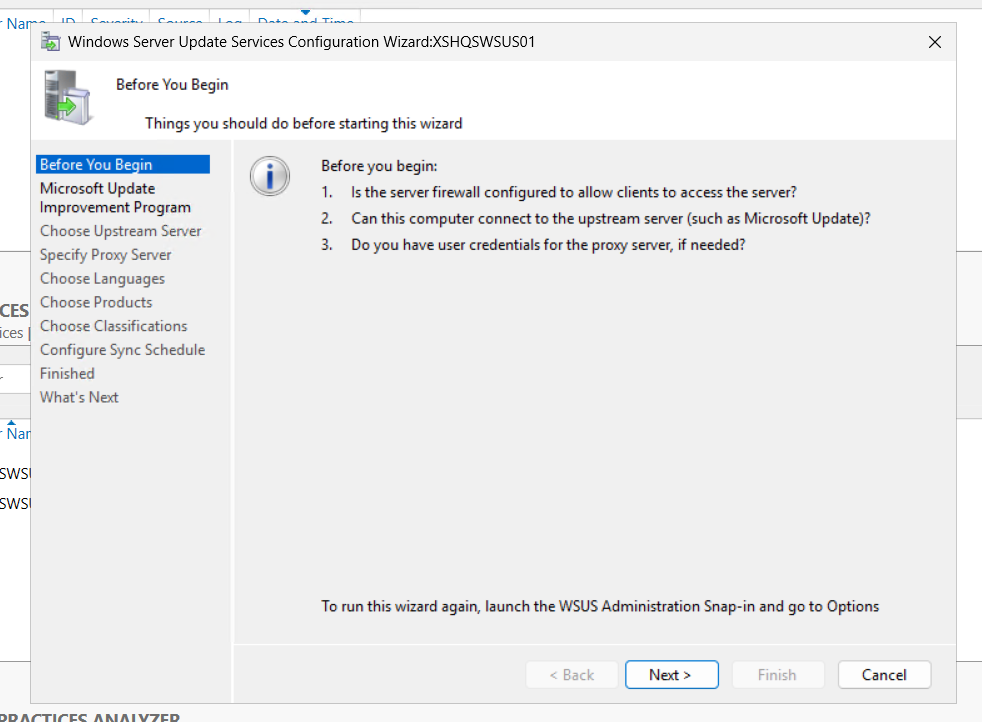
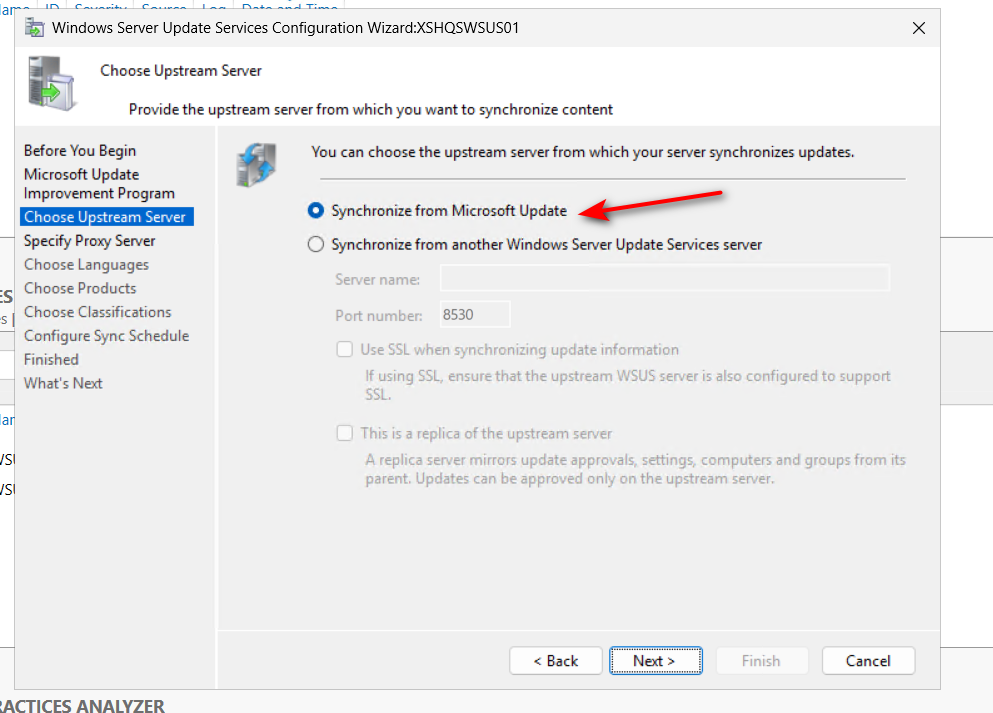
- Choose “Synchronize from Micrpsoft Update”
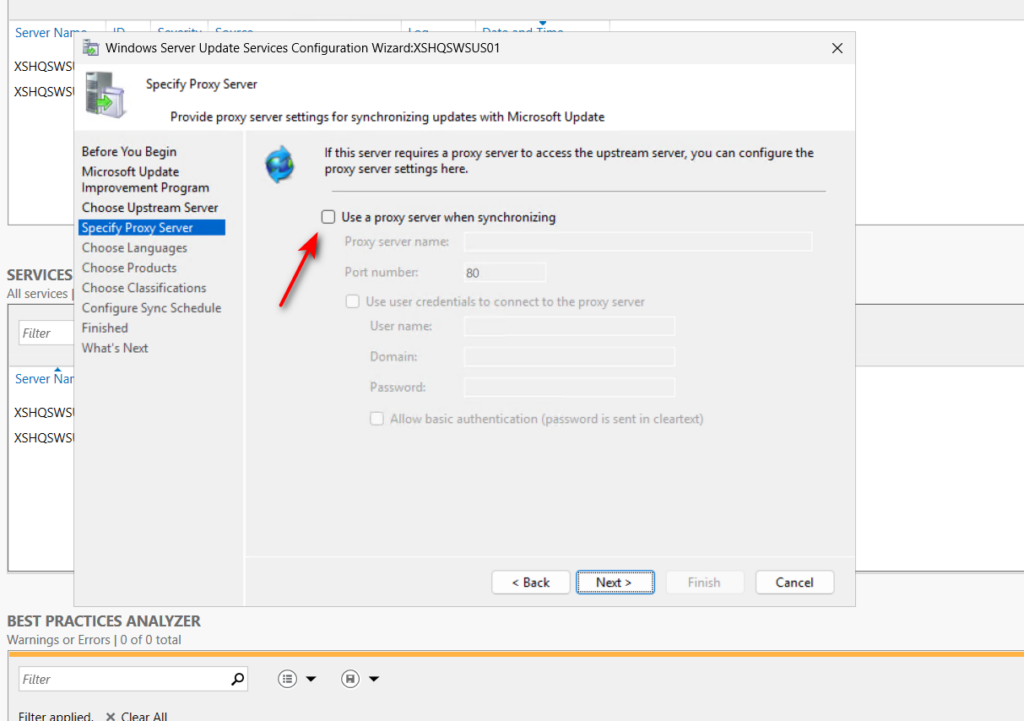
- No proxy sever enable from my side
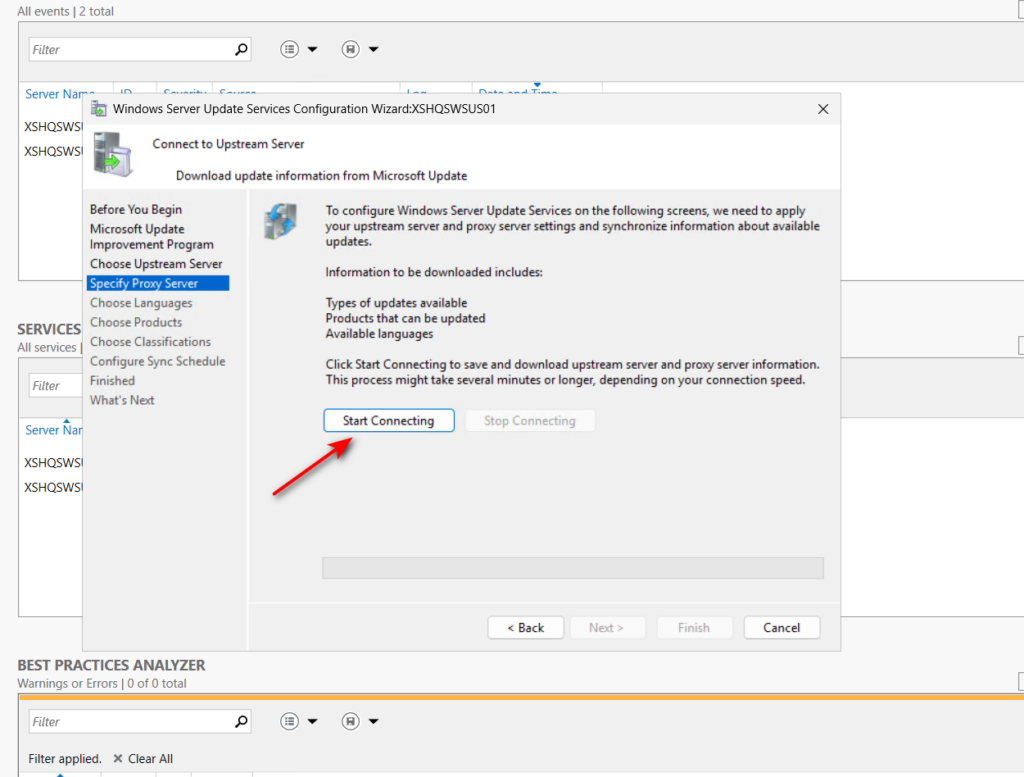
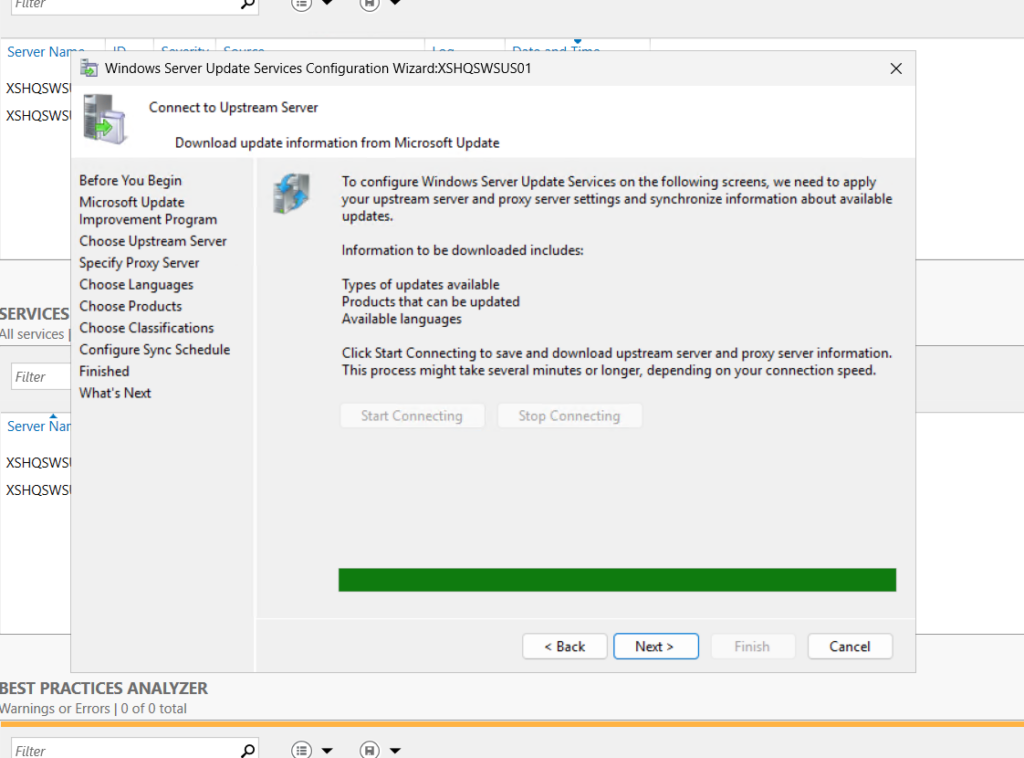
- Click “Start Connecting”, this will take some time.
- Connected to Upstream server
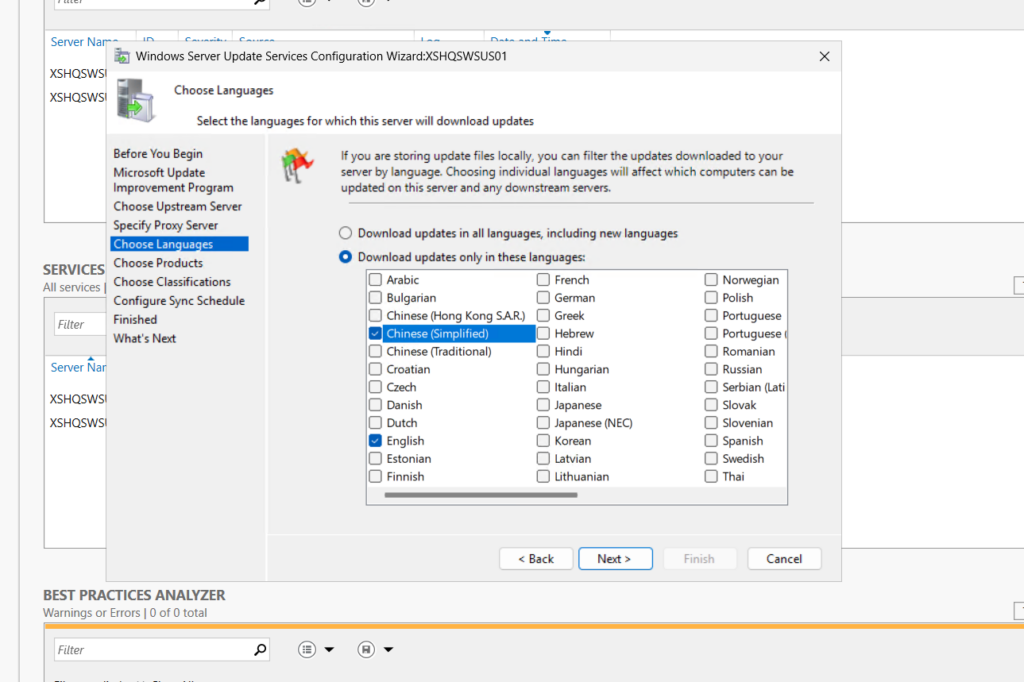
- Choose the updates langurage
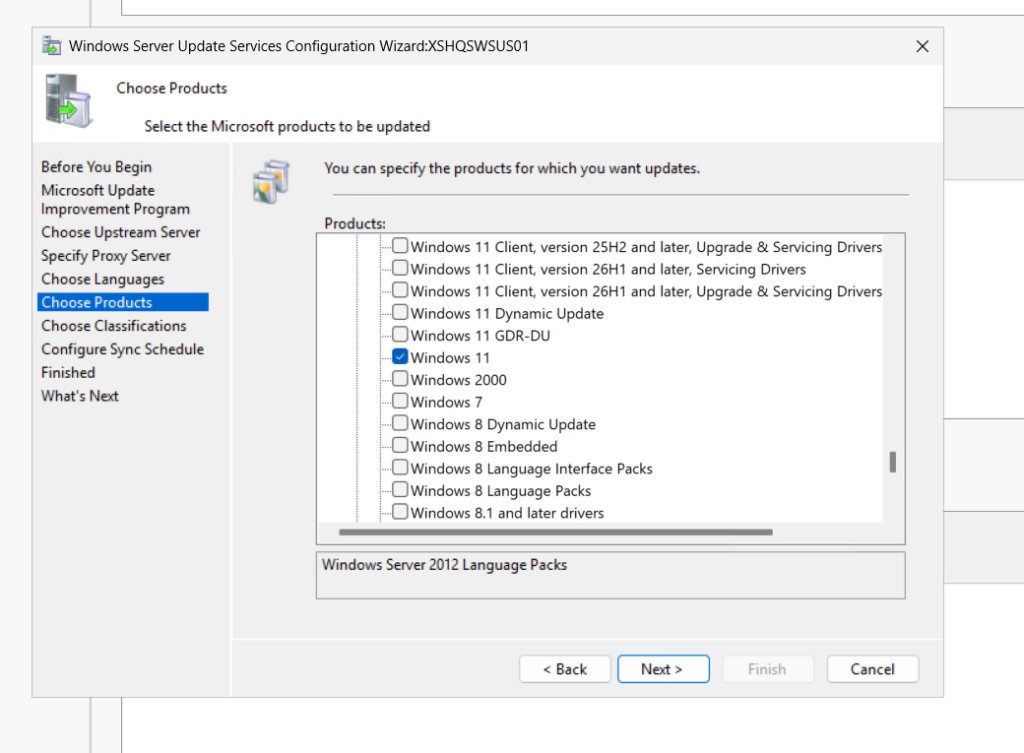
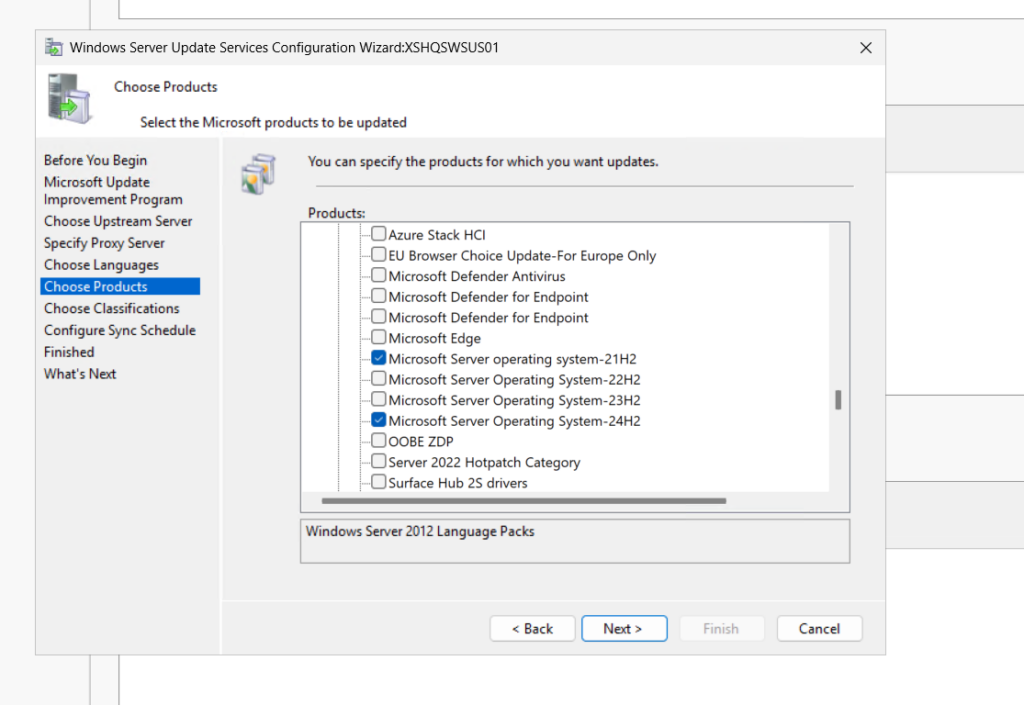
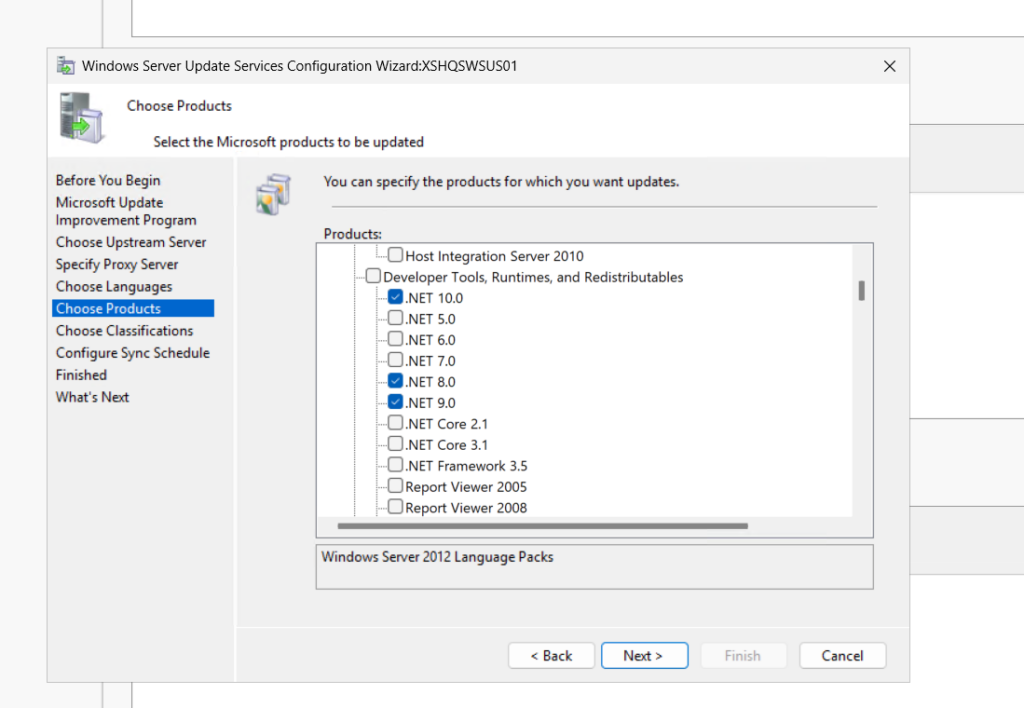
- Choose the products that you need install the patches, this is depends how many kind of Microsoft products that you have.
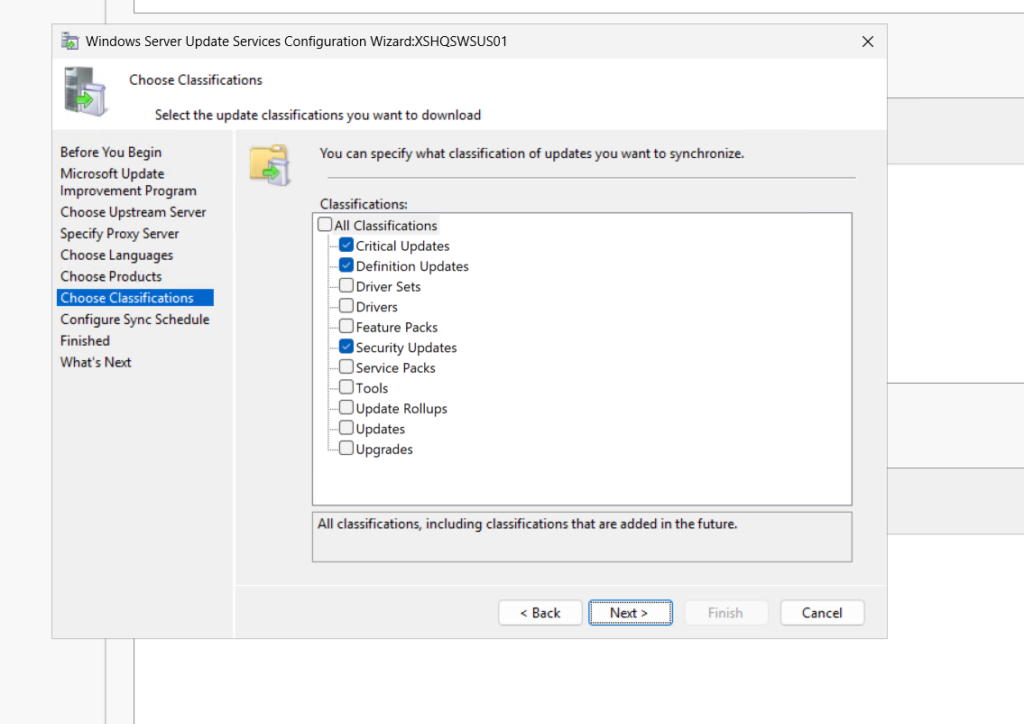
- Choose the updates classification
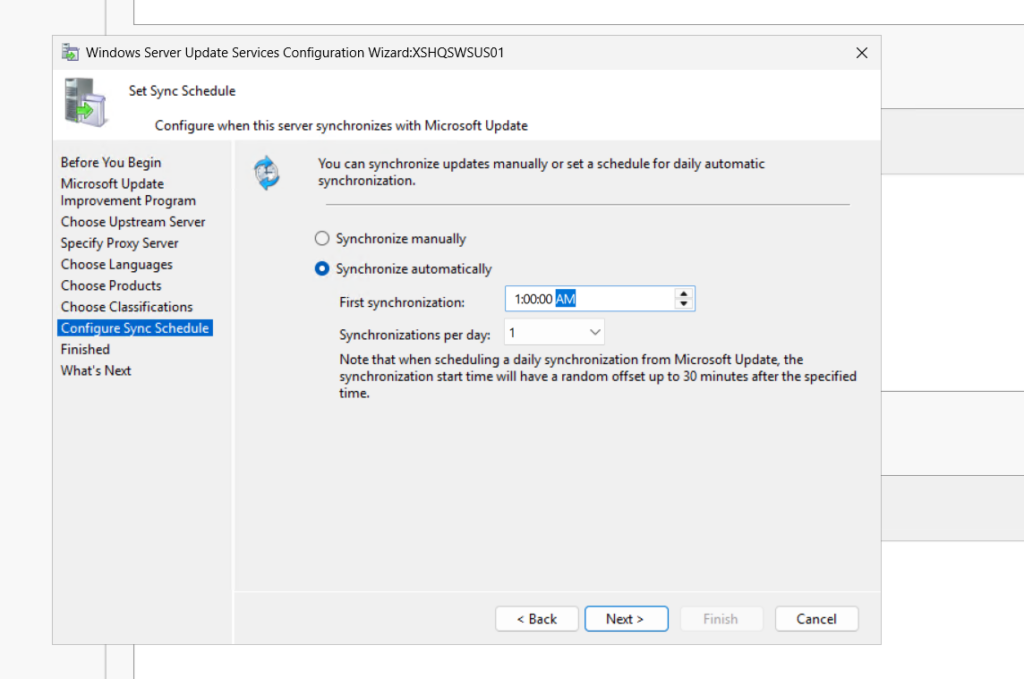
- Config sync schdulde
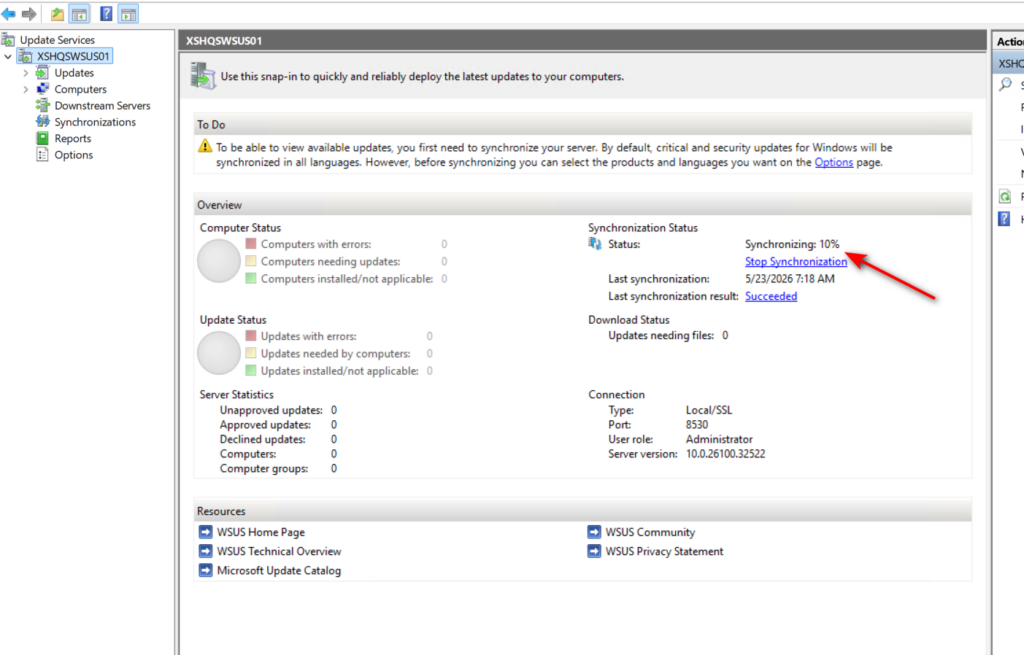
- For the first time you install WSUS, need to begin the initial synchroization.
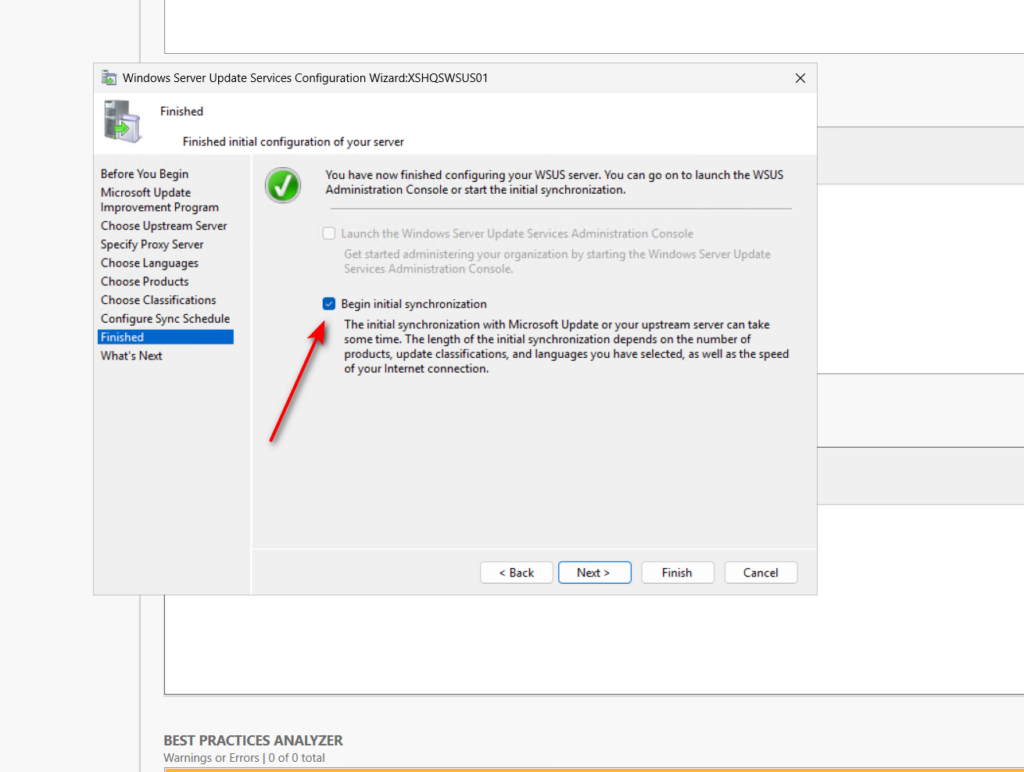
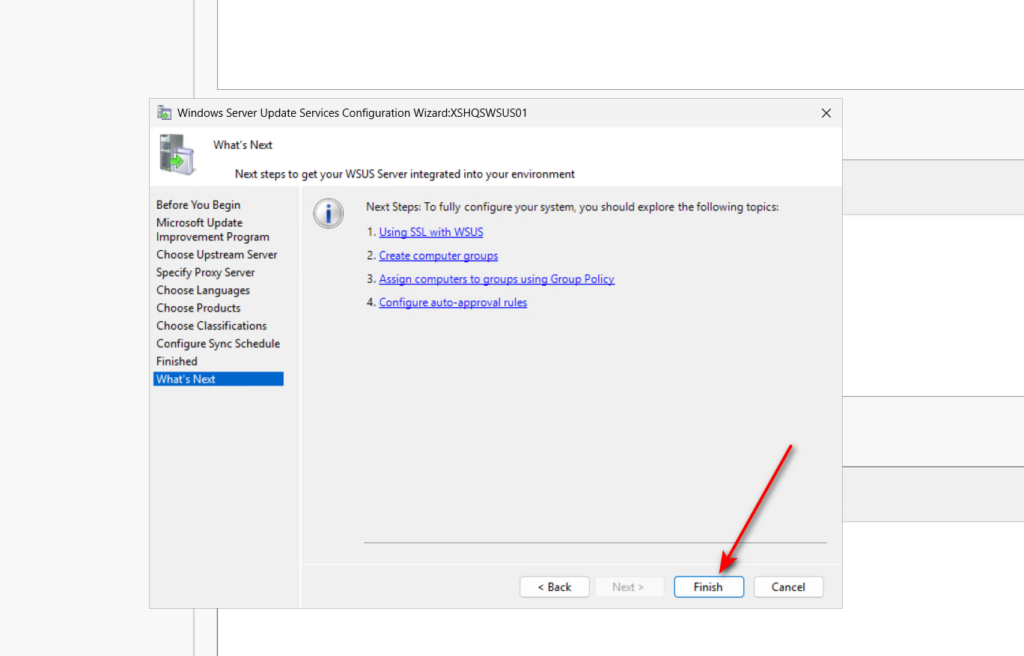
- Click “Finish” to complete the configuration for WSUS.
- Waiting for the sync to complete
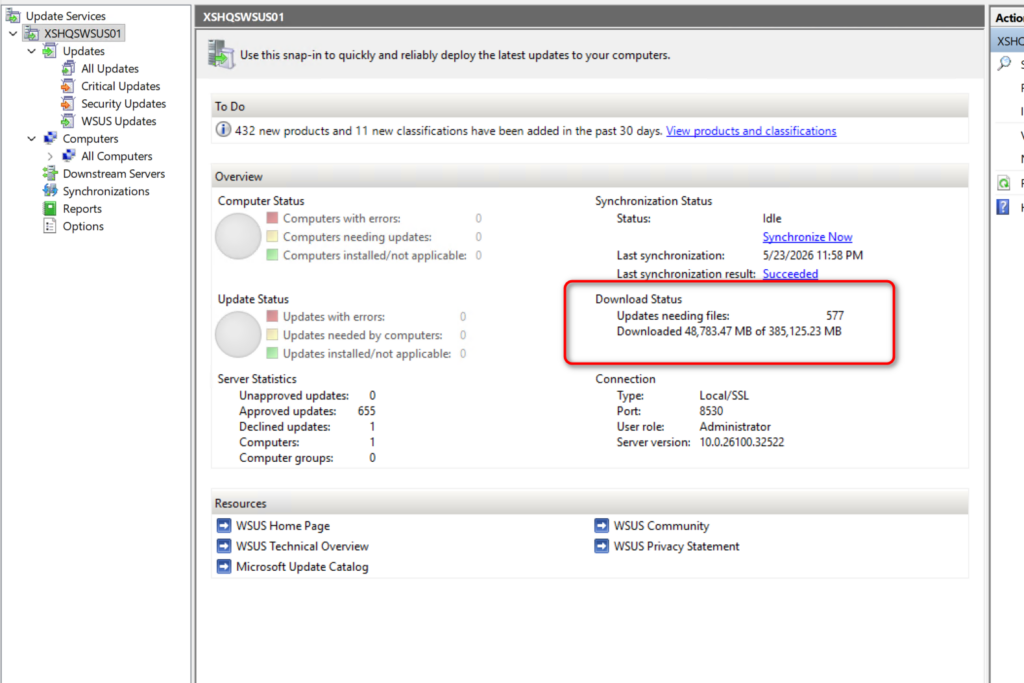
- Download completed
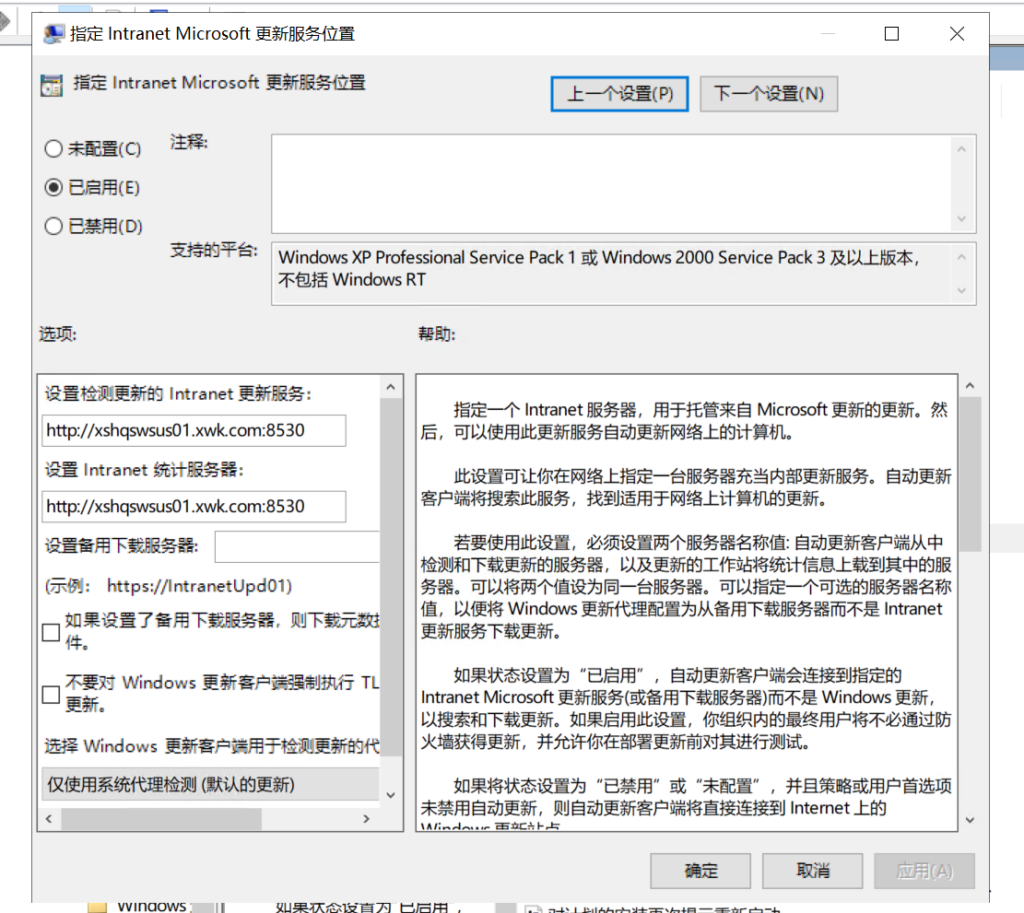
- Created a GPO to enabled the Windows update intranet update server, and point to WSUS server.
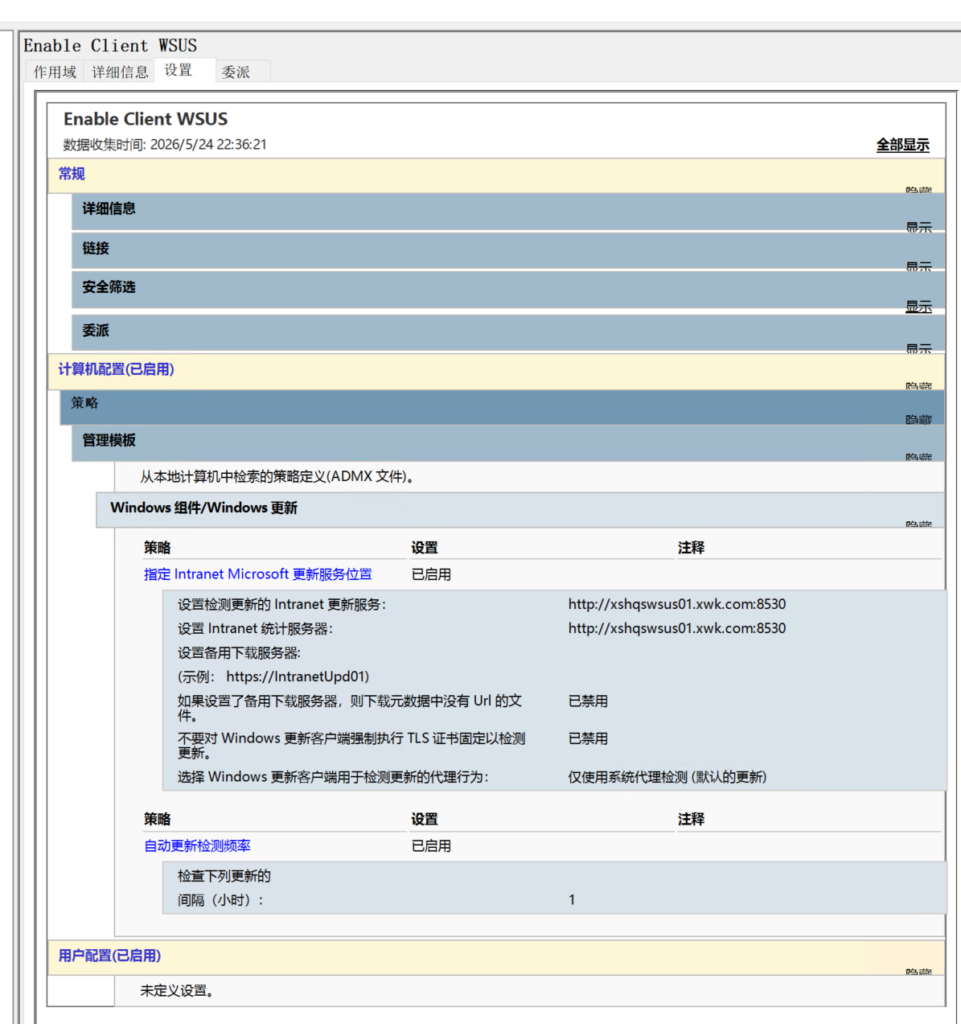
Updated the intranet update service to WSUS server.
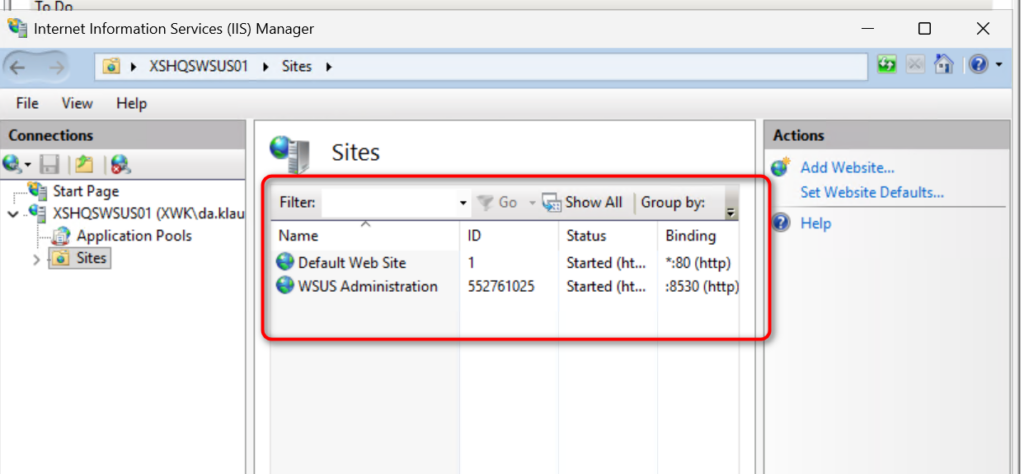
You can check the port “8530” and http protocol here in IIS.
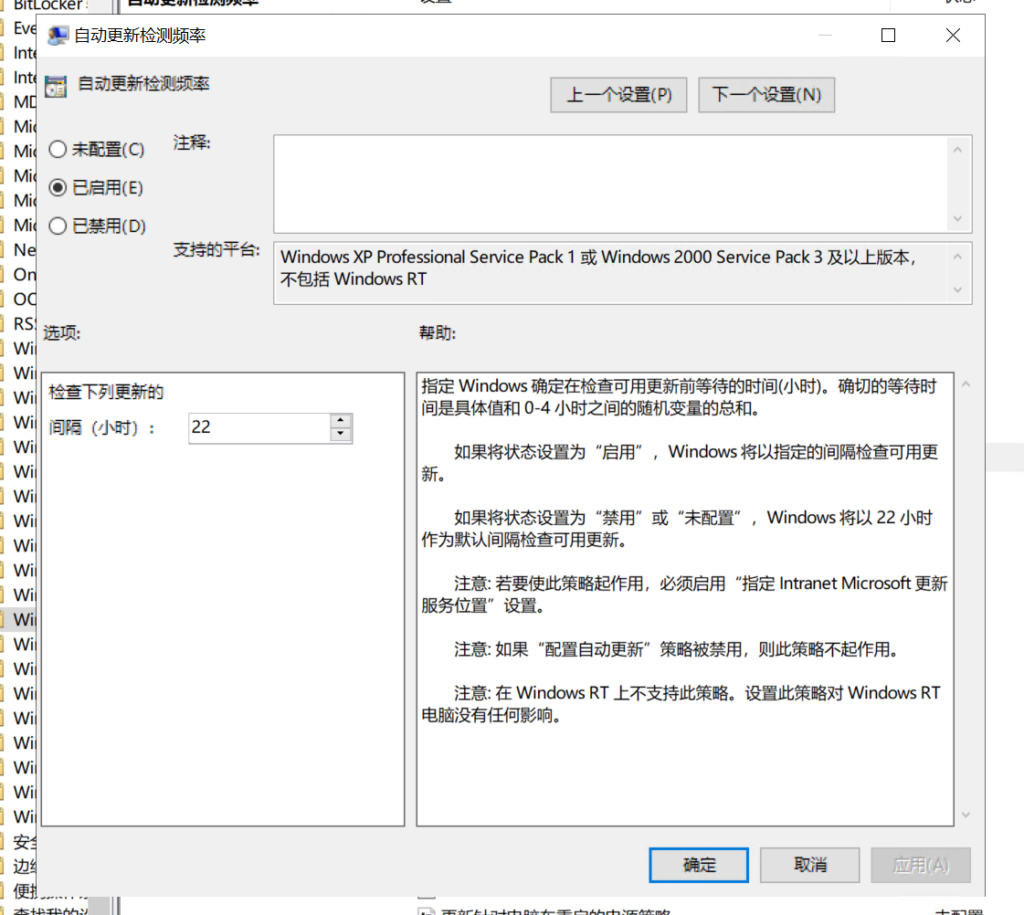
Config the automatic updates detection frequency.
- Run gpoupdate/force on client or restart. Then chen the GPO have enabled, succesfully deployed WSUS server.