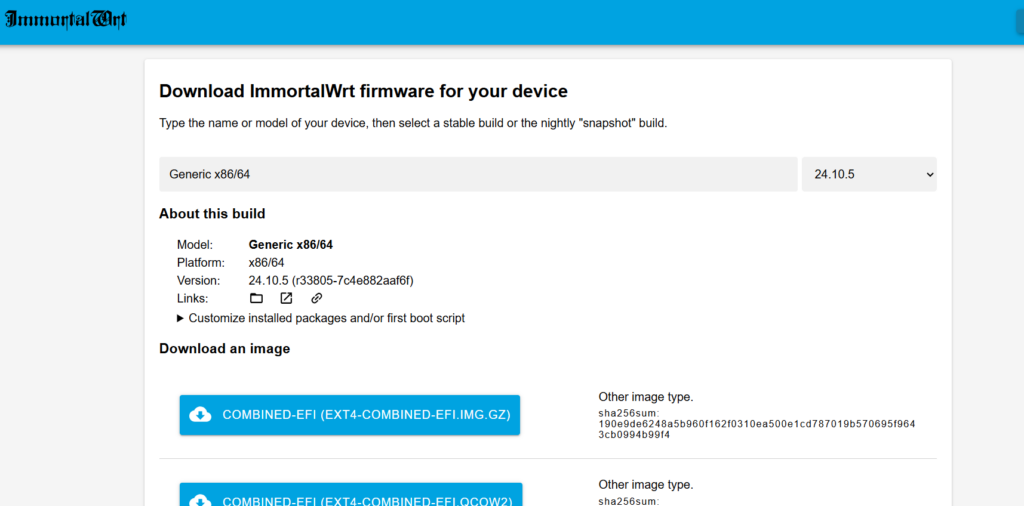
- Firstly, we need to download the image file on following link, depend what version you need to use.
immortalwrt: More customorized.
OpenWRT: Officinal image
https://firmware-selector.immortalwrt.org/
https://firmware-selector.openwrt.org/
Searched "Generic" then choose the version that compatiable with your device.
- Using starwindconverter to converted the files to vmdk. Refer to https://www.digifuture.top/how-to-install-synology-on-vmware-esxi/
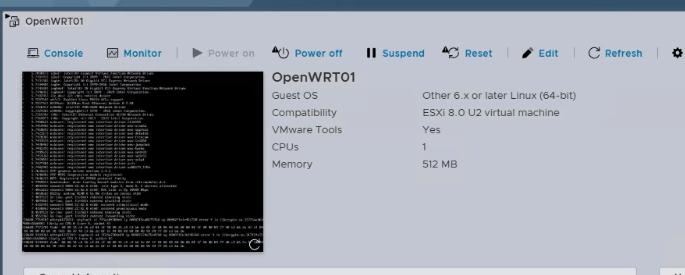
- Then deply the OpenWRT to VMware ESXI. Choose Other 6.x or later Linux (64-bit), Boot type EFI.
The RAM is 512 MB is enough.
- Then extend the /root/ size according following doc, as even you have extenrd the VM disk to 5 GB, but the size still is about 800 MB.
Refer to: https://openwrt.org/docs/guide-user/advanced/expand_root
Automated Pre 25.12
# Install packagesopkg update
opkg install parted losetup resize2fs blkid
# Download expand-root.sh
wget -U "" -O expand-root.sh "https://openwrt.org/_export/code/docs/guide-user/advanced/expand_root?codeblock=0"
# Source the script (creates /etc/uci-defaults/70-rootpt-resize and /etc/uci-defaults/80-rootpt-resize, and adds them to /etc/sysupgrade.conf so they will be re-run after a sysupgrade)
. ./expand-root.sh
# Resize root partition and filesystem (will resize partiton, reboot resize filesystem, and reboot again)
sh /etc/uci-defaults/70-rootpt-resize
Automated Post 25.12
# Install packages
apk update
apk add parted losetup resize2fs blkid

# Download expand-root.sh
wget -U "" -O expand-root.sh "https://openwrt.org/_export/code/docs/guide-user/advanced/expand_root?codeblock=0"

# Source the script (creates /etc/uci-defaults/70-rootpt-resize and /etc/uci-defaults/80-rootpt-resize, and adds them to /etc/sysupgrade.conf so they will be re-run after a sysupgrade)
. ./expand-root.sh

# Resize root partition and filesystem (will resize partiton, reboot resize filesystem, and reboot again)
sh /etc/uci-defaults/70-rootpt-resize
Re-running Script
If the root partition has already been expanded and the expand-root.sh script has previously run, attempting to run it again will not work by default. To perform an additional root expansion, you need remove previous script flags:
rm /etc/rootpt-resize
rm /etc/rootfs-resize
Open the /etc/sysupgrade.conf file and remove the following lines:
/etc/uci-defaults/70-rootpt-resize
/etc/uci-defaults/80-rootfs-resize
This ensures that the system no longer considers the scripts as already executed and then you can re-run script.
- Install Passwll service